


You run git reset --hard, hit enter, and your stomach drops. The commits are gone from git log. Almost everyone who uses Git has had that moment.
Here's the good news: your work is almost certainly still there. Git doesn't delete commits when you reset, rebase or delete a branch. It just stops pointing at them. The reflog is how you find them again.
What the reflog actually is
The reflog is a local diary of every time HEAD or a branch tip moved. Commits, checkouts, resets, merges, rebases, amends and pulls all leave an entry.
Three things to know:
It's local. It isn't pushed and it isn't cloned. Recovery has to happen in the repo where the mistake happened.
It's temporary. When
git gcruns (Git also triggers it automatically now and then), entries older than 90 days are dropped, or 30 days if the commit is no longer reachable from the branch (gc.reflogExpireandgc.reflogExpireUnreachable).It only tracks commits and ref moves. More on that limit below.
Run it:
git reflog
aec5ed9 HEAD@{0}: reset: moving to HEAD~2
b094255 HEAD@{1}: commit: Add feature part 3
f28659d HEAD@{2}: commit: Add feature part 2
aec5ed9 HEAD@{3}: commit (initial): Add feature part 1
Newest entry is on top. Each line has a short hash, a position like HEAD@{1}, and a description of what happened.
Heads up:
HEAD@{1}means "where HEAD was one move ago". It does not mean "the previous commit". Every checkout, reset and rebase step counts as a move.
If your shell complains about the braces (PowerShell does), put the ref in quotes: 'HEAD@{1}'.
Recovery recipes
1. Undo a bad git reset --hard
I ran git reset --hard HEAD~2 and lost two commits. The reflog shows the commit I was on right before the reset:
git reset --hard HEAD@{1}
Done. Both commits are back. If you've run other commands since, the number will be different, so copy the hash from git reflog instead:
git reset --hard b094255
2. Recover a deleted branch
When you force-delete a branch, Git tells you where it was:
Deleted branch feature/login (was ad7e3ac).
That hash is your lifeline. Recreate the branch on it:
git branch feature/login ad7e3ac
If the message has scrolled away, find the branch's last commit in git reflog and use that hash. This works as long as you were on that branch at some point, because HEAD's reflog remembers the commits even after the branch's own log is gone.
3. Undo a rebase (or a merge you regret)
A rebase writes a lot of entries. Here's what mine looked like:
3d13713 HEAD@{0}: rebase (finish): returning to refs/heads/feature/login
3d13713 HEAD@{1}: rebase (pick): Add login validation
ac3f424 HEAD@{2}: rebase (pick): Add login form
50b495f HEAD@{3}: rebase (start): checkout main
ad7e3ac HEAD@{4}: checkout: moving from main to feature/login
You want the entry just before rebase (start). That's where your branch was before the rebase touched it:
git reset --hard HEAD@{4}
There's also a shortcut. Right after a rebase or merge, ORIG_HEAD points to where your branch was before it, so this works too:
git reset --hard ORIG_HEAD
Only trust ORIG_HEAD immediately. Other commands (another merge, a pull, a reset) overwrite it. The reflog is the safer source.
4. Rescue commits made on a detached HEAD
If you commit while detached and then switch away, Git warns you that it's "leaving 1 commit behind". It's easy to ignore that warning. The reflog still has the commit:
30a9729 HEAD@{1}: commit: Experiment on detached HEAD
Put a branch on it:
git switch -c rescue 30a9729
5. Undo an amend
You amended a commit and wish you hadn't:
git reset --soft HEAD@{1}
This moves back to the original commit and leaves your amended changes staged, so nothing is lost. If you want the original commit exactly as it was, use --hard instead.
6. Go back to a point in time
The reflog understands time. You can ask where HEAD was earlier:
git log -1 'HEAD@{2.hours.ago}'
git switch --detach 'HEAD@{yesterday}'
If the reflog doesn't go back that far, Git warns you and falls back to the oldest entry it has.
Quick reference
| Situation | Command |
|---|---|
| Reset too far | git reset --hard HEAD@{1} |
| Deleted a branch | git branch <name> <hash> |
| Bad rebase or merge | git reset --hard ORIG_HEAD or the entry before rebase (start) |
| Commits on detached HEAD | git switch -c rescue <hash> |
| Bad amend | git reset --soft HEAD@{1} |
| See one branch's history | git reflog show <branch> |
| See timestamps | git reflog --date=relative |
What the reflog can't save
The reflog tracks where refs pointed. It knows nothing about files you never committed. Here's how the common "lost work" cases play out:
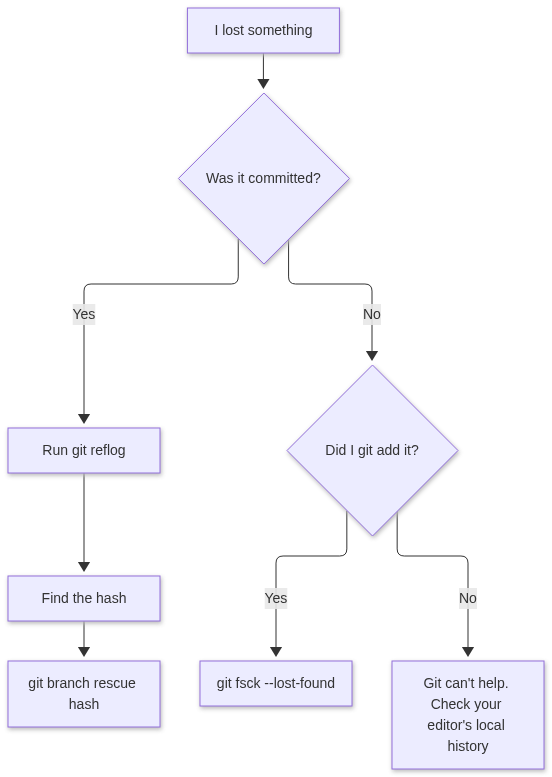
Staged but never committed. git add stores the file's content in Git's object database even if you never commit. After a reset --hard, list the orphaned content:
git fsck --lost-found
dangling blob b881caa83f8e1458337b17f91d1815fb5be8d5e4
--lost-found also copies what it finds into .git/lost-found/. Print the blob with git show b881caa. You get the contents but not the filename, so you'll have to match it up yourself. Do this soon, because the reflog doesn't protect these objects and git gc will eventually delete them.
A dropped stash. git stash drop prints the stash's hash when it runs. If you still have it, restore it directly:
git stash apply 8d1221e
If you don't, list unreachable commits and look for one that looks like a stash:
git fsck --no-reflogs --unreachable | grep commit
Edits you never staged. I tested this one on purpose. I edited a tracked file, ran git reset --hard, and no blob for my edit showed up in fsck. Git never saw that content, so it can't give it back. Editor local history (VS Code and JetBrains both keep one) is your only chance.
Habits that make recovery easy
Stop and read before you fix. Run
git reflogfirst, look at the hash, and check it withgit show <hash>before resetting to it.Pin what you find. Once you've located a lost commit, run
git branch rescue <hash>. Reflog entries expire. A branch doesn't.Don't clean up mid-rescue.
git gc --prune=nowdeletes dangling objects (staged-but-lost files, dropped stashes) on the spot. I checked: afterwards, my dangling blob and dropped stash were gone. Andgit reflog expire --expire=now --allempties the reflog itself.Make a backup branch before risky moves.
git branch backup-before-rebasetakes a second and costs nothing.
Wrap-up
Most Git disasters are really "I can't find my commit" problems. The reflog turns that into a lookup. Next time something vanishes, don't panic and don't start re-typing code from memory. Run git reflog, find the hash, and point a branch at it.
Published via ZyVOP — Write once in Markdown, auto-backup to GitHub, and syndicate to Dev.to, Medium & Hashnode in 1 click.
About the author
- One platform to write, cross-post to Dev.to, Medium, WordPress, Hashnode, and Bluesky, and protect your SEO with canonical links. Zero paywalls and full content ownership.
Comments
Join the discussionThe "pin what you find" habit is the part I wish more people did — I have seen reflog entries expire while someone was still deciding which hash was the right one. Checking with git show before resetting is also a great safety step that is easy to skip in a panic.
Absolutely. Creating a rescue branch as soon as you find a candidate gives you time to inspect it without worrying about losing the reference. A quick git show before resetting can save you from turning one mistake into another.
Agreed — making the rescue branch first thing has saved me more than once. It's such a small step, but it turns a stressful "did I just lose that commit" moment into a calm lookup. The git show check before resetting is a great call too.