# The 15 Git Commands That'll Save Your Sanity (and Your Code)
Most developers don't learn Git by reading the manual. They learn it the first time they delete something important, commit the wrong files, or discover that the branch they thought they were working on was not the branch they were actually working on.
That is not necessarily a bad way to learn. Git becomes much easier once you've seen what these commands are trying to protect you from.
The problem is that Git has accumulated a reputation for being complicated because there are dozens of commands, countless flags, and a lot of terminology that makes perfect sense once you already understand Git. When you're new to it, though, `add`, `commit`, `push`, `pull`, `reset`, `restore`, and `revert` can look like variations of the same thing.
They aren't.
This guide focuses on the commands you'll actually use in day-to-day development and, more importantly, the situations that tell you which one to reach for. You don't need to memorize every Git flag to be productive. You need a good mental model, a handful of reliable commands, and enough understanding to avoid turning a small mistake into a much bigger one.
## The Git Mental Model
Before getting into the commands, it helps to understand the four places your code can exist during normal Git work.
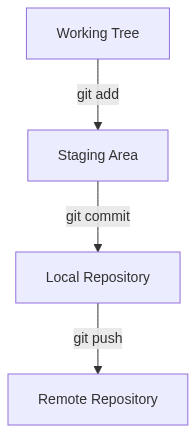
Your **working tree** is where you actually edit files. The **staging area** is where you decide which of those changes belong in your next commit. A **commit** records that staged state in your local repository. The **remote repository** — often hosted on GitHub, GitLab, or another server — is where you share those commits with other people or systems.
Most of the Git commands in this article are really just ways of inspecting, moving, combining, or undoing changes between those states.
Once that clicks, Git stops feeling like a collection of unrelated commands.
* * *
## 1\. `git init`
When you're starting a project from scratch and want Git to track its history, you create a repository with `git init`.
```bash
git init
```
Git creates a hidden `.git` directory inside the project. That directory is where Git keeps the information it needs to manage the repository: commits, references, configuration, and the other internal data that makes version control possible.
It is worth separating two ideas here because beginners often conflate them. Running `git init` creates the repository; it does **not** automatically add every file in the directory to version control. Your files are still untracked until you stage them.
A typical first setup therefore looks like this:
```bash
git init
git add .
git commit -m "Initial commit"
```
You can also ask Git to create the project directory for you:
```bash
git init my-new-project
```
You generally only need to initialize a repository once. When you're not sure whether you're already inside one, `git status` is a safer check than running `git init again`.
* * *
## 2\. `git clone`
`git clone` is the starting point for an existing project. Instead of creating a new repository, you're making a local copy of one that already exists somewhere else.
```bash
git clone https://github.com/username/repository.git
```
A normal clone gives you the project's files and repository history and sets up information about the remote repository so you can fetch and push changes later. It is the command you'll usually run when joining a team, contributing to an open-source project, or moving an existing repository onto a new machine.
Git normally creates a directory based on the repository name, but you can choose your own:
```bash
git clone https://github.com/username/repository.git my-project
```
There is one practical consideration worth knowing about. A repository with ten years of commits can be considerably larger than the current source code suggests, because you're bringing historical data along with it. When you only need a limited amount of history, a shallow clone can be useful:
```bash
git clone --depth 1 https://github.com/username/repository.git
```
That gives you a much smaller starting point, although it also means you don't have the complete history available locally.
The simple rule is:
**Use** `init` **when you're creating the repository. Use** `clone` **when the repository already exists.**
* * *
## 3\. `git status`
If there is one Git command worth learning so well that you stop thinking about it, it is `git status`.
```bash
git status
```
When you're not sure what Git thinks is happening, ask Git. The command shows your current branch and tells you about changes that are modified, staged, or untracked.
A simplified example might look like this:
```text
On branch main
Changes not staged for commit:
modified: index.html
Untracked files:
style.css
```
In this case, `index.html` is already part of the repository but has local changes that haven't been staged. `style.css` is a new file that Git isn't tracking yet.
`git status` is deliberately boring, and that's exactly why it is useful. It doesn't change your files or history. Run it before you commit. Run it when you've just pulled someone else's changes. Run it before a reset. Run it after you've been switching branches and can no longer remember what you were doing.
When Git starts feeling confusing, don't guess. Start with `git status`.
* * *
## 4\. `git add`
The staging area is one of Git's most useful ideas, and also one of the first things beginners find strange.
Suppose you've changed three files, but only two of those changes belong in the next commit. Git gives you the option to decide exactly what gets recorded.
That's what `git add` does.
```bash
git add filename.txt
```
You can stage everything below the current directory:
```bash
git add .
```
or stage matching files:
```bash
git add *.css
```
Think of staging as preparing a package before you send it. Your working tree can contain many changes, but only the staged changes are going into the next commit.
That distinction becomes particularly useful when you're doing unrelated work in the same project. You don't have to create a giant commit simply because several files happen to be modified at once.
One caution: `git add .` is convenient, but convenience can hide mistakes. It may stage files you didn't intend to include, which is why `.gitignore` should be set up early for things such as dependency directories, local environment files, generated output, and operating-system clutter.
* * *
## 5\. `git commit`
A commit is a recorded snapshot of the changes you've staged.
```bash
git commit -m "Add user authentication"
```
This is the point where your work becomes part of the repository's history. You can compare it later, inspect it, revert it, or use it as a known point to return to.
That makes commit quality matter more than many beginners realize. A repository filled with messages like `changes`, `fix`, and `final` technically works, but it is much harder to understand months later.
Compare:
```text
Fix bug
```
with:
```text
Fix null pointer when cart is empty
```
The second message tells the next person — often future you — what the commit was actually about.
There is also a shortcut worth knowing:
```bash
git commit -am "Fix navbar spacing on mobile"
```
The `-a` option stages modifications and deletions to files Git already tracks, then creates the commit. It does **not** include new files, so a brand-new file still needs `git add` first.
And when the latest commit is almost right but not quite, `--amend` lets you update it:
```bash
git commit --amend -m "Add user authentication and tests"
```
Amending is handy while a commit is still local. Once you've pushed it and other people may have based work on it, rewriting that commit becomes a different conversation.
* * *
## 6\. `git branch`
Branches are how you isolate work without putting unfinished changes directly onto the branch other people may be using.
```bash
git branch
```
lists your local branches.
To create one:
```bash
git branch new-feature
```
To delete a branch that has already been safely merged:
```bash
git branch -d old-feature
```
And when you know you want to remove it regardless of whether Git considers it merged:
```bash
git branch -D old-feature
```
You can rename a branch with:
```bash
git branch -m new-name
```
A useful thing to understand is that a branch isn't a separate copy of your entire project. It is essentially a movable reference to a commit, which is why creating branches is cheap.
There is one beginner mistake worth remembering: `git branch new-feature` creates the branch, but it does **not** switch you to it. To create and move to a branch in one step, modern Git gives you:
```bash
git switch -c new-feature
```
That leads naturally to the next command family.
* * *
## 7\. `git checkout`, `git switch`, and `git restore`
For years, `git checkout` handled several unrelated jobs. You could use it to switch branches, create a branch, or restore a file to an earlier state.
```bash
git checkout new-feature
git checkout -b another-feature
git checkout -- filename.txt
```
The command still works, and you will continue to encounter it in older documentation and existing projects. The problem is that one command having several very different meanings makes it harder for beginners to understand what is happening.
Modern Git separates those operations.
Use `git switch` when you're working with branches:
```bash
git switch new-feature
git switch -c another-feature
git switch -
```
The last form switches back to the branch you were previously on, which is surprisingly useful when you're jumping between two tasks.
Use `git restore` when you're working with files:
```bash
git restore filename.txt
```
That discards unstaged changes to the file.
To remove a file from the staging area without throwing away its edits:
```bash
git restore --staged filename.txt
```
So the simplest mental model is:
```text
git switch → branches
git restore → files
git checkout → older multi-purpose command
```
You don't need to treat `checkout` as obsolete. Just recognize that `switch` and `restore` make your intention clearer when you're writing new commands.
* * *
## 8\. `git merge`
Eventually, isolated work needs to come back together. That's what merging does.
For example:
```bash
git switch main
git merge new-feature
```
If Git can reconcile the two histories automatically, the merge may be uneventful. When it can't, you'll get a conflict.
A conflict usually means that both sides changed overlapping parts of a file, or made changes Git cannot safely combine on its own. The repository hasn't been corrupted; Git has simply reached a decision that requires a human.
You'll see something like:
```text
<<<<<<< HEAD
your version
=======
their version
>>>>>>> new-feature
```
Open the file, decide what the final version should actually be, remove the conflict markers, and then stage the resolved file:
```bash
git add filename.txt
git commit
```
The first few merge conflicts can feel alarming because the file suddenly contains strange markers and Git seems to stop in the middle of the operation. In practice, conflict resolution is a normal part of collaborative development. The important thing is to understand that Git is waiting for a decision, not reporting a fatal failure.
* * *
## 9\. `git push`
Your commits are local until you send them somewhere shared.
```bash
git push origin main
```
That command pushes your local commits to the `main` branch on the `origin` remote.
When you create a new branch and push it for the first time, you will often use:
```bash
git push -u origin new-feature
```
The `-u` option establishes the upstream relationship between your local branch and the remote branch. After that, a plain:
```bash
git push
```
is usually enough.
Force-pushing is where things get serious.
```bash
git push --force
```
can replace remote history, including commits you weren't aware another developer had added. There are legitimate reasons to rewrite history, particularly on personal branches after an amend or rebase, but it should never be a reflex.
When a force-push is genuinely necessary, this is generally safer:
```bash
git push --force-with-lease
```
It checks that the remote branch is still in the state your local repository expects. If someone else has moved it since your last update, the push can be rejected instead of silently overwriting their work.
Even with that protection, shared branches deserve caution.
* * *
## 10\. `git pull`
`git pull` is the command you use when the remote repository has changes you need to bring into your current branch.
```bash
git pull origin main
```
Conceptually, the operation starts by fetching updates from the remote and then integrating the relevant remote branch into your current branch. Exactly how that integration happens depends on your configuration and options.
A common alternative is rebasing:
```bash
git pull --rebase origin main
```
Instead of creating a merge as part of the pull, Git replays your local commits on top of the updated remote history. That can produce a cleaner, more linear history, but rebasing also rewrites the commits being replayed.
Neither workflow is universally right. Some teams merge, some rebase, and some use stricter fast-forward policies. The important thing is consistency: know what your project expects before changing the default behavior.
For example:
```bash
git config pull.rebase true
```
can make rebase the default for the relevant configuration scope.
One subtle point is worth remembering: `git pull origin main` does not necessarily mean “update my local `main` branch.” It integrates `origin/main` into **whichever branch you're currently on**. That distinction matters when you're working on a feature branch.
* * *
## 11\. `git log`
Every Git repository eventually reaches the point where you need to know not just what the code looks like now, but how it got there.
That's what `git log` is for.
```bash
git log
```
The default output contains commit metadata as well as the commit message, which can get noisy in a large repository. In practice, you'll often want a more compact view:
```bash
git log --oneline
```
Or, when you're trying to understand branching and merges:
```bash
git log --oneline --graph --all
```
A few flags cover most everyday needs:
| Flag | What it does |
| --- | --- |
| --oneline | Compact commit summary |
| --graph | Draw an ASCII representation of branches and merges |
| -p | Show the changes introduced by commits |
| --author="name" | Filter commits by author |
| -n 5 | Show only the latest five commits |
The real value of `git log` isn't the list itself. It is the context. When a piece of code looks strange and nobody remembers why it exists, history can often answer the question faster than another hour of searching through the codebase.
* * *
## 12\. `git diff`
Before you commit a change, you should know what you're actually about to record.
That's the job of `git diff`.
```bash
git diff
```
A simple example:
```diff
- Welcome
+ Welcome to My Site
```
The minus line represents the old content; the plus line represents the new content.
There is a second version you'll use often:
```bash
git diff --staged
```
That shows what is currently in the staging area and therefore what the next commit is likely to contain.
You can also compare two branch tips directly:
```bash
git diff branch1 branch2
```
A five-second diff check before committing is one of the best habits you can build. It catches accidental formatting changes, forgotten debugging statements, edits to the wrong file, and all the tiny mistakes that otherwise end up being discovered during code review.
* * *
## 13\. `git stash`
Stash is useful when your current work is unfinished but your working tree needs to be clean.
Maybe a production issue needs attention. Maybe you need to inspect another branch. Maybe you simply aren't ready to create a commit yet.
You can temporarily put your work aside with:
```bash
git stash
```
Git stores the changes and returns the working tree to a clean state.
You can see what you've saved with:
```bash
git stash list
```
and bring the most recent stash back with:
```bash
git stash pop
```
If you'd rather reapply it without removing the stash entry:
```bash
git stash apply
```
And when you know you no longer need one:
```bash
git stash drop
```
One detail surprises people: untracked files aren't included in a normal stash. When you need those as well, use:
```bash
git stash -u
```
If you regularly have several stashes in flight, name them:
```bash
git stash push -m "search filter work"
```
That small bit of discipline makes a huge difference when you come back to the stash list later and discover that every entry is just another anonymous `WIP`.
* * *
## 14\. `git reset` and `git revert`
These two commands are often introduced together because both can be used to undo work. They are not interchangeable, and the difference becomes particularly important once your commits are being shared with other people.
### `git reset`
Reset moves the current branch reference backward.
```bash
git reset --soft HEAD~1
git reset --mixed HEAD~1
git reset --hard HEAD~1
```
The three modes mainly differ in what happens to your index and working tree:
| Mode | Branch | Staging area | Working tree |
| --- | --- | --- | --- |
| --soft | Moves | Keeps changes staged | Keeps changes |
| --mixed | Moves | Unstages changes | Keeps changes |
| --hard | Moves | Resets | Resets |
`--mixed` is the default.
The command that deserves the most respect is:
```bash
git reset --hard HEAD~1
```
It can discard changes from tracked files in your working tree. If you haven't checked what Git thinks is going to happen, this is a very bad time to start experimenting.
The other important consideration is whether the commit has already been shared.
If the commit exists only locally, resetting can be perfectly reasonable. If you've already pushed it and other people may have based their work on it, moving the branch backward creates a history rewrite that affects everyone downstream.
### `git revert`
For an already-shared commit, `git revert` is often the safer choice:
```bash
git revert HEAD
```
Rather than moving the branch backward, it creates a **new commit** that reverses the earlier change.
The easiest way to remember the distinction is:
```text
reset → move the branch backward
revert → add a new commit that undoes an earlier one
```
Git also keeps a reflog locally, which can sometimes help recover from mistakes involving commands such as `reset`. That's useful to know, but it shouldn't be treated as permission to run destructive commands carelessly.
* * *
## 15\. `git remote`
A Git repository can work entirely locally, but most development eventually involves a remote repository somewhere else. `git remote` lets you inspect and manage those connections.
To see what is configured:
```bash
git remote -v
```
To add a remote:
```bash
git remote add origin https://github.com/user/repo.git
```
To remove one:
```bash
git remote remove origin
```
To rename one:
```bash
git remote rename origin upstream
```
`origin` is a convention, not a special Git command or keyword. When you clone a repository, Git normally names the remote `origin` simply because that is the conventional default.
Fork-based workflows often use another common convention:
```text
origin → your fork
upstream → original repository
```
That arrangement lets you push your own work to `origin` while fetching updates from the original project through `upstream`.
* * *
# Five Habits That Make Git Much Easier
Knowing commands is useful. Knowing when to stop and inspect the repository is even more useful.
### Check before you change things
When you're uncertain, start here:
```bash
git status
git diff
```
Those two commands answer a remarkable number of “what just happened?” questions without changing anything themselves.
### Keep commits focused
Small commits are easier to review and easier to undo. They also make `git log` useful instead of turning it into a museum of commits named `final`, `final2`, and `really-final-this-time`.
### Use `.gitignore` early
A typical project might ignore things such as:
```text
node_modules/
.env
.DS_Store
dist/
```
Just remember that `.gitignore` doesn't remove a file that has already been committed. If a credential or API key has already been pushed to a remote repository, assume it has been exposed and rotate it.
### Treat force-push as an exception
Before using:
```bash
git push --force
```
ask yourself whether anyone else could have based work on the remote branch.
On a private feature branch, rewriting history may be perfectly reasonable. On a shared branch, it can create a mess for everyone.
### Practice recovery, not memorization
The fastest way to understand Git is to use it somewhere safe.
Create a throwaway repository. Make a few commits. Create a branch. Modify a file. Stash it. Undo something. Create a merge conflict and resolve it.
Once you've recovered from a mistake in a repository you don't care about, the same commands feel much less intimidating in a repository you do.
* * *
# Git Commands by Situation
This is the part worth bookmarking because it answers the question beginners actually have: **“What do I type now?”**
| Situation | Reach for |
| --- | --- |
| Starting a project | git init |
| Getting an existing project | git clone |
| Not sure what's happening | git status |
| Choosing what belongs in the next commit | git add |
| Saving a checkpoint | git commit |
| Starting isolated work | git branch / git switch |
| Moving between branches | git switch |
| Throwing away a local file change | git restore |
| Combining branch histories | git merge |
| Sharing your commits | git push |
| Getting remote changes | git pull |
| Investigating history | git log |
| Inspecting exactly what changed | git diff |
| Temporarily setting work aside | git stash |
| Undoing an unshared commit | git reset |
| Undoing a shared commit | git revert |
| Checking repository connections | git remote |
* * *
# Quick-Reference Cheat Sheet
| # | Command | What it does |
| --- | --- | --- |
| 1 | git init | Create a repository |
| 2 | git clone | Copy an existing repository |
| 3 | git status | Inspect repository state |
| 4 | git add | Stage changes |
| 5 | git commit | Record a snapshot |
| 6 | git branch | Manage branches |
| 7 | git checkout / git switch / git restore | Switch branches or restore files |
| 8 | git merge | Combine branch histories |
| 9 | git push | Send commits to a remote |
| 10 | git pull | Fetch and integrate remote changes |
| 11 | git log | Inspect commit history |
| 12 | git diff | Compare changes |
| 13 | git stash | Temporarily store unfinished work |
| 14 | git reset / git revert | Undo changes in different ways |
| 15 | git remote | Manage remote connections |
# Where to Go From Here
You don't need to memorize all fifteen commands before you start building things.
For most everyday work, you'll spend a surprising amount of time with just:
```bash
git status
git add
git commit
git push
git pull
```
Branching becomes important as soon as you're working on multiple features or collaborating with other developers. `stash`, `reset`, and `revert` become important when something gets messy.
That's actually the better way to learn Git: let the situations teach you the commands instead of trying to memorize the entire manual up front.
And when you do get into trouble, remember the most useful Git habit of all:
**Don't guess what Git is doing. Inspect the state first.**
```bash
git status
git diff
```
Git isn't really about memorizing commands.
It's about knowing where your changes are, understanding what you want to happen next, and choosing the command that gets you there without making the problem worse.
Once that mental model becomes second nature, Git stops feeling mysterious.
It becomes a safety net.
And that's what it was supposed to be all along.
---
*Published via [ZyVOP](https://zyvop.com/the-15-git-commands-that-ll-save-your-sanity-and-your-code-7yygk?utm_source=hashnode&utm_medium=crosspost&utm_campaign=syndication) — Write once in Markdown, auto-backup to GitHub, and syndicate to Dev.to, Medium & Hashnode in 1 click.*