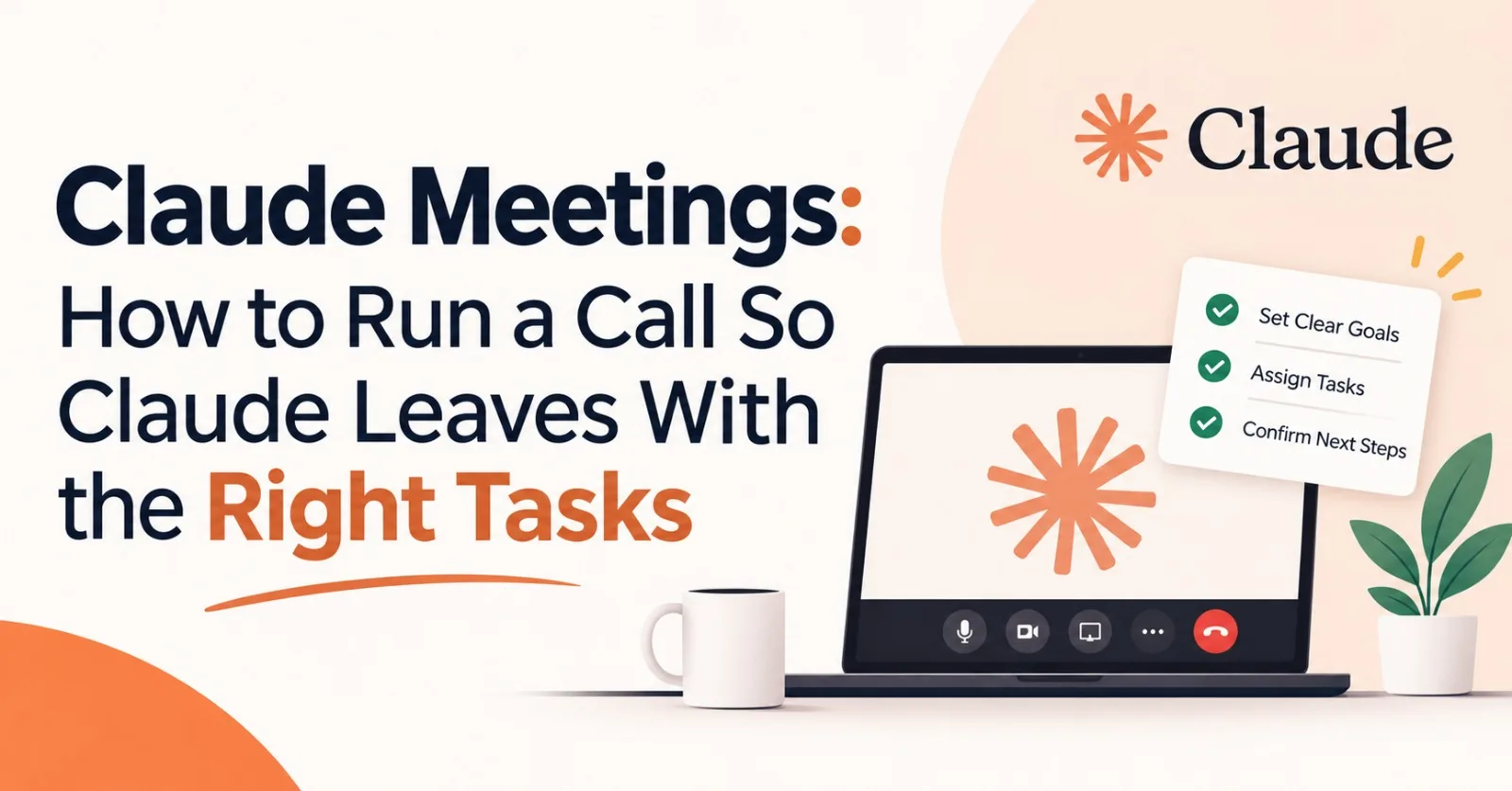
Claude can now sit in your Google Meet call as a visible participant, build docs and whiteboards while you talk, and write up notes and action items afterward. That sounds like the end of "who's taking notes?" But the action items Claude leaves with come from the conversation you actually have. A rambling call produces a rambling list.
I couldn't find a playbook from Anthropic for running the meeting itself, so this post combines what its help center documents with my own suggestions, which I've marked. I also couldn't find which model powers Meetings, so these are general briefing habits, not model-specific tricks.
Note: Claude Meetings is in beta on Team and Enterprise plans, works with Google Meet only for now, and isn't available to some organizations (those with zero data retention, a HIPAA-ready configuration, or customer-managed encryption keys). Rollout began on November 12, 2026 and is gradual, so your organization may not have it yet.
The call at a glance

| When | What Claude does (per Anthropic) |
|---|---|
| Before | You add it from the Meetings page after connecting Google Calendar, or turn on auto-join for all meetings or all except one-on-ones |
| During | Answers in the Meet chat by default, builds docs and whiteboards on request, and uses connected tools with the asker's permission |
| After | Puts the notes (summary and action items), transcript, and everything it built on a meeting page, and org attendees on the invite get a recap email |
1. Before the call: settle consent and guests
Anthropic's key warning: before you add Claude or turn on auto-join, make sure everyone on your calls is okay with being transcribed. When Claude joins, it shows up as a participant and posts a notice in the chat. It saves a transcript, summary, and screen descriptions, not audio.
Guests are where plans differ:
| Team | Enterprise | |
|---|---|---|
| Claude Meetings | On by default; an owner can turn it off | An owner turns it on for all or part of the organization |
| Calls with outside guests | Claude can join by default; an owner can turn that off | Claude stays out until an owner allows it |
Even when guests are allowed, Claude listens and takes notes but doesn't reply in the call chat, though it still posts its notice there. Live docs, whiteboards, and chat stay on the meeting page, and guests don't get that page or the recap email. My suggestion: tell guests at the start that Claude is present and what it saves.
Tip: To pause Claude during a sensitive stretch, ask it to stop listening or use the meeting page. (Using that for sensitive topics is my suggestion; the pause control is Anthropic's.)
2. Open with a 30-second brief
Claude follows the conversation, so it works from what gets said or shown. This is my suggestion, adapted from the three-part brief in my post "How to Hand Claude a Long Task and Walk Away": the goal, the output you want, and a rule for gaps.
Claude, quick brief. We're here to decide [the decisions]. By the end I want
[the outputs, e.g. a one-page plan and an action list]. For every action item,
capture an owner and a due date, and if one is missing, flag it instead of guessing.
3. Give Claude specific jobs
Anthropic's own example call has a rhythm worth copying: someone has Claude start a doc early so teammates can edit while the talk continues, a whiteboard joins when the topic turns to timelines, and someone asks for a recap before the meeting ends. The documented command is as simple as "Claude, make a doc." Specific requests do better than vague ones (again, my suggestion):
| Instead of | Try |
|---|---|
| "Claude, take notes." (it already does) | "Claude, keep a running list of decisions and open questions in a doc." |
| "Claude, any thoughts?" | "Claude, what's still undecided, based on what we've said so far?" |
| "Claude, make a doc." | "Claude, make a doc with decisions, owners, and dates, and update it as we go." |
| "Claude, summarize." | "Claude, recap the decisions we made and who owns each one." |
4. Mind where answers appear
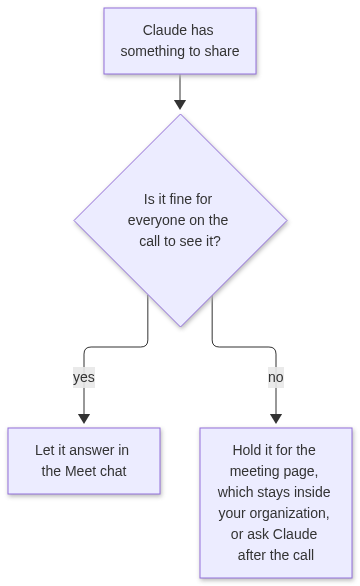
Anything Claude posts in the Meet chat is visible to everyone on the call. The chat on the meeting page, in contrast, is internal to your organization, so outside guests can't see it.
5. Approve connected tools with care
Claude uses each person's connected tools with that person's permission, like sending a Slack message. It asks the first time, and a yes applies going forward. For now, when someone asks out loud, it asks each time to confirm who's speaking. Approval requests show up in the Meet chat when possible, and on the meeting page if Claude needs to confirm your Claude account. Tool use also counts toward your plan's usage and can lead to charges for your organization. Owners can also switch off members' connected tools in meetings entirely.
Here is my suggested split for live calls:
| Fine to do live | Hold until after you've reviewed |
|---|---|
| Answering questions from the conversation | Sending messages to other people |
| Drafting docs and whiteboards | Changing shared or live records |
| Looking things up in tools you've already approved | Approving a tool you wouldn't want used in future meetings, since a yes applies going forward |
6. Close by reading it back
In the last few minutes, read each decision aloud with its owner and due date, then ask Claude to flag anything missing. Anthropic's example call ends with a request to share a recap with the team. My suggestion for the closing script:
Claude, before we end: list every decision we made and every action item,
with owner and due date. Flag anything missing an owner or a date,
then share a recap with the team.
7. Review the meeting page
Claude writes the notes so no one has to, but someone should still read them.
| Check | Why |
|---|---|
| Does every action item have an owner and a date? | Items drawn from a conversation can be vague or half-agreed |
| Do any items come from jokes or maybes? | Remove them before they become anyone's homework |
| Do the summary and decisions match what you meant? | Fix or edit before sharing. People from your organization on the invite can edit what Claude made |
| Are names and numbers right in the transcript? | Spot-check the details people will act on |
| Did guests get the follow-up? | They don't get the page or the recap email, so share it yourself |
You can also ask Claude about past meetings you have access to in a regular chat, and the Meetings calendar lists every call Claude joined.
Know before you start
| Topic | Detail |
|---|---|
| Platform | Google Meet only for now, with others coming |
| Plans | Team and Enterprise, in beta |
| Cost | Notes, transcripts, and answers that don't use connected tools are included. Docs, whiteboards, and other artifacts made in a meeting are free through February 10, 2027 |
| Duration | Claude can stay for up to eight hours and warns you before it leaves |
| Reliability | A joining incident ran November 16 to 19. Anthropic's status page said afterward that auto-join was available to all Enterprise customers and some Team customers, with more Team customers to follow. As of November 24, the status page lists no newer Meetings incident. Still, check status.claude.com before an important call |
A simple way to start: pilot it on one recurring internal call for a couple of weeks, then compare Claude's action items with what your team would have written. While it's in beta, keep a human or backup note-taker on any call that matters (my suggestion). The pattern stays the same each time: brief it, give it specific jobs, read it back, then review.
Sources
Anthropic, Introducing Claude Meetings, now in beta (November 12, 2026)
Claude Help Center, Use Claude Meetings (setup, guests, privacy, pricing, owner controls)
Claude Help Center, Release notes (rollout date)
Claude Status, status.claude.com (November 16 to 19 joining incident and auto-join availability)
Marked suggestions, example scripts, and the approval split are my own wording. Features are in beta and may change.
Published via ZyVOP — Write once in Markdown, auto-backup to GitHub, and syndicate to Dev.to, Medium & Hashnode in 1 click.
About the author
- One platform to write, cross-post to Dev.to, Medium, WordPress, Hashnode, and Bluesky, and protect your SEO with canonical links. Zero paywalls and full content ownership.
Comments
Join the discussionNo comments yet. Be the first to comment.